Whether you are building a professional mailing list, migrating to a new CRM, or simply keeping a secure offline backup, knowing how to export Gmail contacts to CSV or Excel is a fundamental data management skill.
While the process seems straightforward, most users run into “formatting nightmares”—like jumbled names or broken character encoding—when they open their CSV in Excel. This guide provides the most efficient, updated method to ensure your data remains clean and professional.
Phase 1: Pre-Export Cleanup (Don’t Export Junk)
Before you export Gmail contacts to CSV, take 60 seconds to clean your database. This prevents you from spending hours manually deleting duplicates in Excel later.
- Go to Google Contacts.
- Click “Merge & fix” in the left-hand sidebar.
- Google will automatically identify duplicate entries. Click “Merge all”.
Phase 2: The Step-by-Step Export Process
Google doesn’t export directly to an .xlsx file; it uses the universal .csv (Comma Separated Values) format.
Step 1: Select Your Data
In the Google Contacts dashboard, you can either select specific contacts by checking the boxes next to their names or export your entire directory.
Pro Tip: If you only want a specific group (e.g., “Clients 2026”), ensure you have assigned them a Label beforehand.
Step 2: Initiate the Export
Click the Export icon (usually a tray with an upward arrow) located in the top-right menu or the left sidebar.
Step 3: Choose the Correct Format
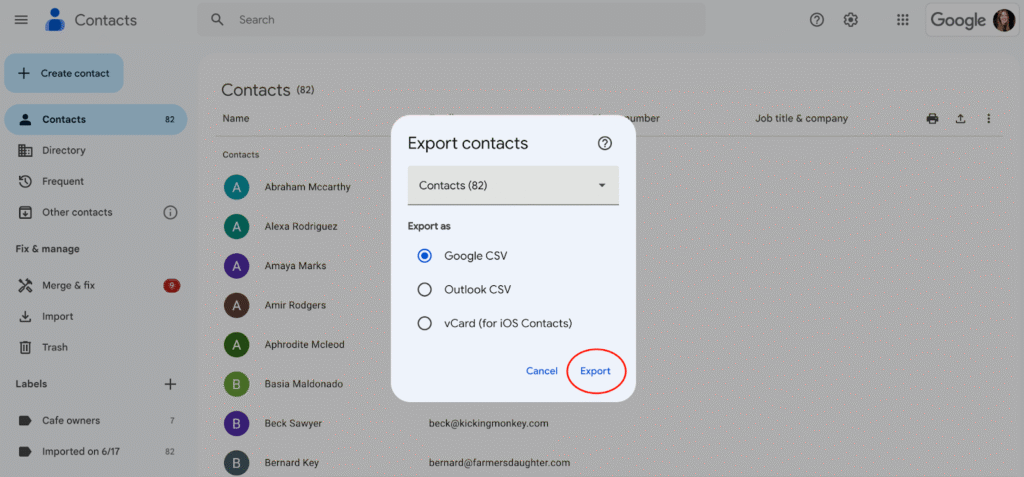
A pop-up window will appear. This is the most critical step for compatibility:
- Google CSV – Best for importing into another Google account.
- Outlook CSV – Choose this one if you want to export Gmail contacts to Excel. It is specifically formatted for high compatibility with Microsoft applications.
- vCard – Best for Apple (iOS/iCloud) users.
Phase 3: The “Professional” Way to Open CSV in Excel
If you simply double-click your CSV file, Excel often fails to recognize special characters or unique formatting. To keep your data organized, use the Import Method:
- Open a blank Excel workbook.
- Go to the Data tab in the top ribbon.
- Select Get Data > From File > From Text/CSV.
- Select your exported Gmail file.
- In the preview window, ensure File Origin is set to 65001: Unicode (UTF-8). This ensures international characters and symbols appear correctly.
- Click Load.
Comparison: Google CSV vs. Outlook CSV
| Feature | Google CSV | Outlook CSV |
| Primary Use | Transfer between Google Accounts | Import to Excel, Outlook, or CRMs |
| Encoding | UTF-8 (Strict) | Compatible with Win-1252 |
| Field Names | Google-specific headers | Standardized headers (First Name, Last Name) |
Phase 4: Using Google Sheets as a “Bridge”
If you find Excel’s import settings confusing, use Google Sheets as a shortcut:
- Open Google Sheets.
- Go to File > Import > Upload and select your CSV.
- Once the data is visible and looks correct, go to File > Download > Microsoft Excel (.xlsx).
- This method bypasses the character encoding issues entirely.
Troubleshooting Common Issues
1. “My contacts are missing!”
Gmail distinguishes between “Contacts” (people you saved) and “Other Contacts” (people you have emailed but haven’t saved). If your export is empty, ensure you aren’t accidentally trying to export an empty label.
2. “The names are all in one column.”
This happens when Excel doesn’t recognize the “Comma” as a separator. Use the “Text to Columns” feature under the Data tab to split them back into organized rows.
3. “Phone numbers are losing the leading zero.”
Excel often sees phone numbers as mathematical values. To fix this, highlight the phone number column and change the cell format to “Text” before importing.
Also Read: How to Backup Gmail Emails: A Step-by-Step Guide
Summary
By following these steps to export Gmail contacts to CSV, you ensure your data mobility is seamless. Remember to always choose the Outlook CSV format for the best experience in Excel and always use the Data Import method rather than double-clicking the file.