
With having a vast user-base, MS Outlook stands in the first row of prominent email clients. Along with emailing, Outlook also offers calendaring, task managing, contact managing and other services. Outlook data files automatically become the apple of the eye because of their importance. Usually, users take extra care of Outlook database files as they contain very crucial data. It is obvious for users that they become concerned if Outlook database files face any issue.
We can find numerous users on the web those search the way to repair Outlook data files. Every user searches for a guaranteed and effortless way to repair corrupted Outlook data files when corruption occurs. Although you may be aware of the Outlook data files viz. OST and PST, yet it is important to know about them. OST is an Offline Storage Table that stores a copy of the data item that is stored on the server. On the other side, PST is Personal Storage Table that stores data on the local machine/system.
In this blog, we will explore all aspects related to Outlook data files’ corruption. We will also know the process to repair Outlook data files.
Some Possible Reasons for Outlook Data File Corruption:
- Random termination/shutdown while Outlook is running.
- Oversized files.
- Malware and virus attacks may also lead to corruption.
- Hardware malfunction can also be a reason for file corruption.
Do We Have Any Manual Method to Repair Outlook Data Files?
Yes, we have a manual method to repair corrupted Outlook data files. But, the effectiveness of this method is a subject of discussion. We have Microsoft Outlook Inbox Repair Tool aka Scanpst.exe for this task. It is located in the Outlook installation directory; location varies depending on the version of the Outlook installed on your system. Follow the below-given steps to use the Scanpst.exe utility.
- Find out the Scanpst.exe file and make a double click to launch this Outlook Inbox Repair Tool.
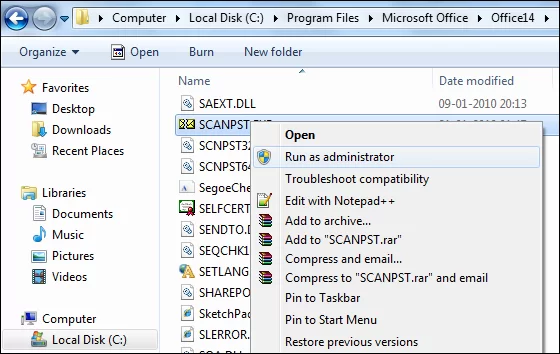
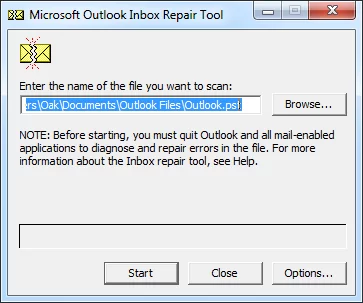
- Using the Browse button, select the corrupted .pst files.
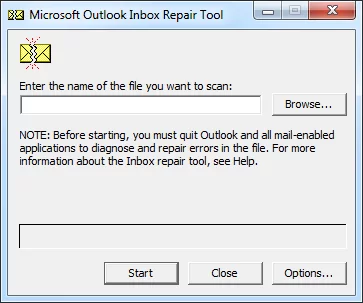
- Initiate the scanning of the corrupted Outlook database files by clicking on the Start.
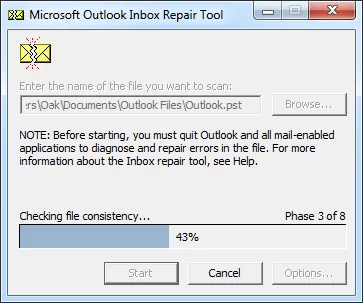
- The utility will scan the entire added database files; wait until the successful completion of scanning.
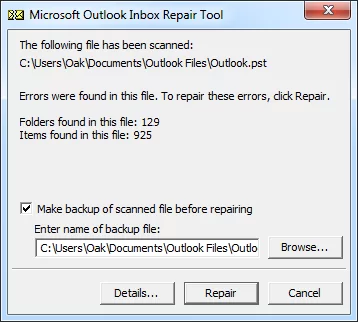
- The utility will inform you about the errors found while scanning. Now, make a click on the Repair button to repair them. Check the “Make a backup of scanned file before repairing” option to get a backup.
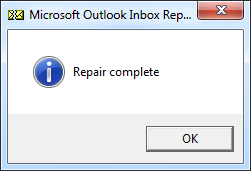
- It may take a couple of minutes to repair the Outlook database files. You will get a message “Repair complete” after completion. Click on the OK button at the end. This is how you can repair Outlook database using Scanpst.exe.
Why SCANPST.EXE Utility Not Preferred by Users?
We can see Scanpst.exe is simple to use and takes only a few steps. Still, Scanpst.exe is not a preferred choice to repair corrupted Outlook data files.For the following reasons, users don’t repair Outlook data files using this utility.
- The utility comes in handy in fixing only minor corruption issues.
- It allows adding .pst files of a maximum 2 GB size. You will be restricted if you have .pst files of larger size.
- It is a time-consuming process that is uncertain about the results.
- Technical expertise is needed to execute this process time and again.
- It does not provide advanced options like filtering, searching and other user-centric options to repair Outlook database.
Recommended Option: Shoviv Outlook Data Repair Solution
Shoviv Outlook PST Repair Tool offers a list of user-centric features. The tool is developed by keeping eye on each need of users. The GUI of the tool facilitates an easy to understand processing that makes the task effortless. It provides many options/features that make it the first choice of professionals. It has all that is needed to repair Outlook database. Some of the other highlighted prominent features of the software are:
- Users can add limitless Outlook data files. The software processes multiple data files in a single go in no time.
- You will get recovered corrupted and hardly deleted items in no time.
- For users’ convenience, an option to search .pst files has also been facilitated. Users can easily apply fields like CC, BCC, Subject, From, To etc.
- The software also facilitates the exportation of recovered data file items in file formats like MSG, EML, RTF, and HTML.
- Being a professional tool, it properly maintains the folder hierarchy and retains data integrity.
- Users also get control over the size of the resultant .pst files. A user can easily set the size of the files.
- You can also export .pst to Office 365 and Live Exchange using the Shoviv tool.
- Advanced options and features like Folder Mapping, Email Translation and Incremental Export is also present. These options/features make the tool one of the most advanced tools.
- By creating an IMAP/POP profile in Outlook and configuring them, users can also export .pst items to Webmail server/portals like Gmail, Yahoo mail etc.
- A demo version of the software that allows processing the first fifty items per folder is also given.
Simple Steps to Repair Outlook Database Files Using the Shoviv Software:
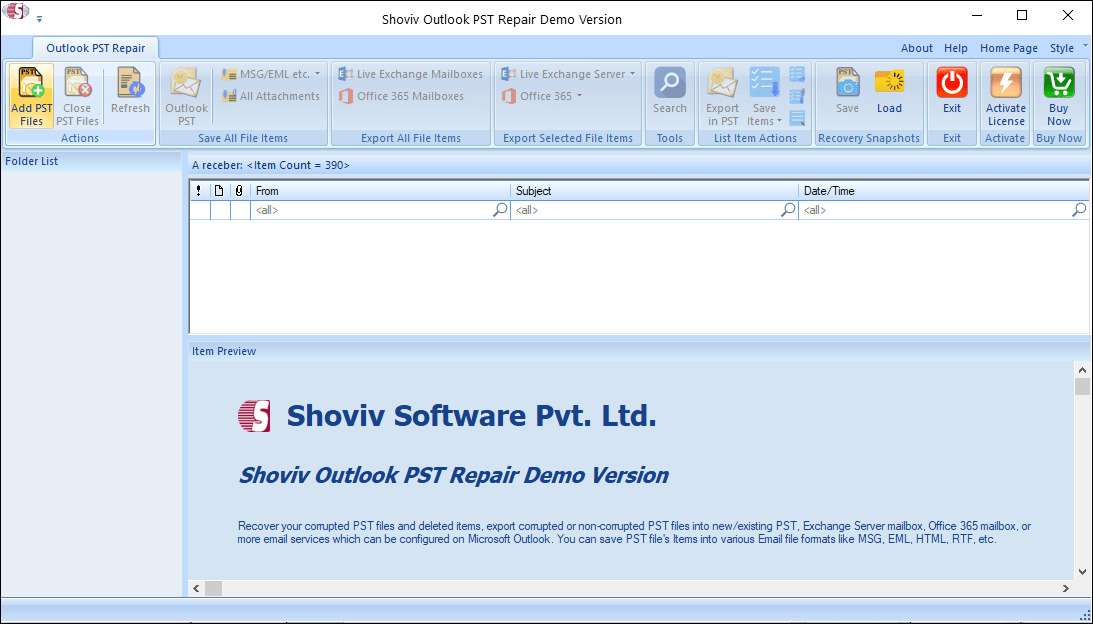
- Install and Open the Shoviv tool.
- Now add the .pst files by clicking the Add PST Files button present on the left corner of the ribbon bar.
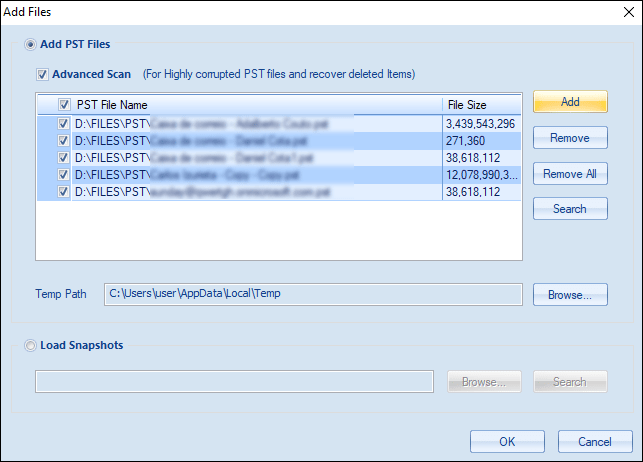
- Add the files using the provided option and must check the Advanced Scan option to recover deleted items and repair highly corrupted PST files. Click on the Ok button.
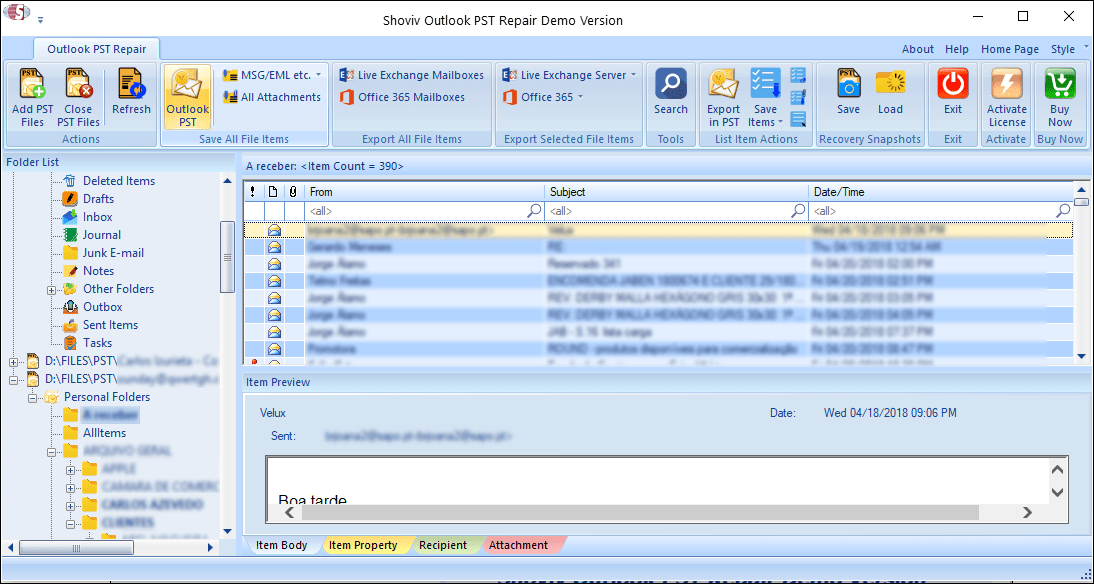
- Click on the Outlook PST option present on the ribbon bar. Here, you can also have a preview of the added .pst files items.
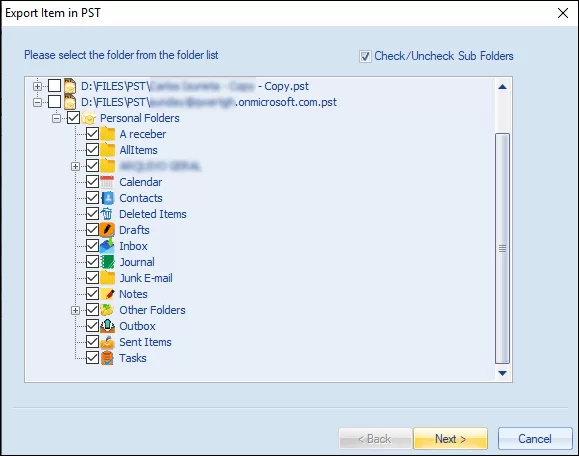
- Check/ Uncheck Sub Folders as per your requirement. After that click on the Next.
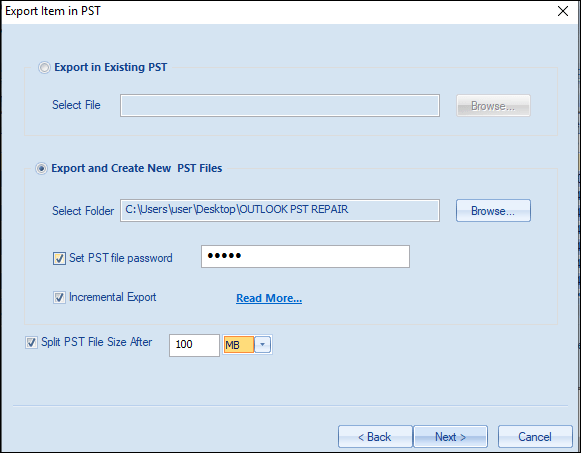
- Now decide, whether you want to export in existing PST files or create and export in new PST files. A Browse option is provided for this. You can also set the size and password for the resultant PST files.
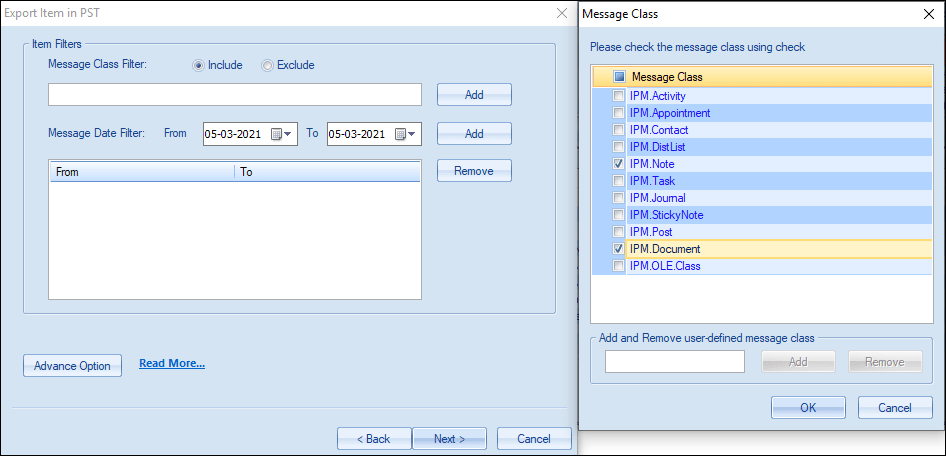
- Now you will be prompted to the filter page. You can apply a filter based on the Message Class Filter and Message Date Filter.
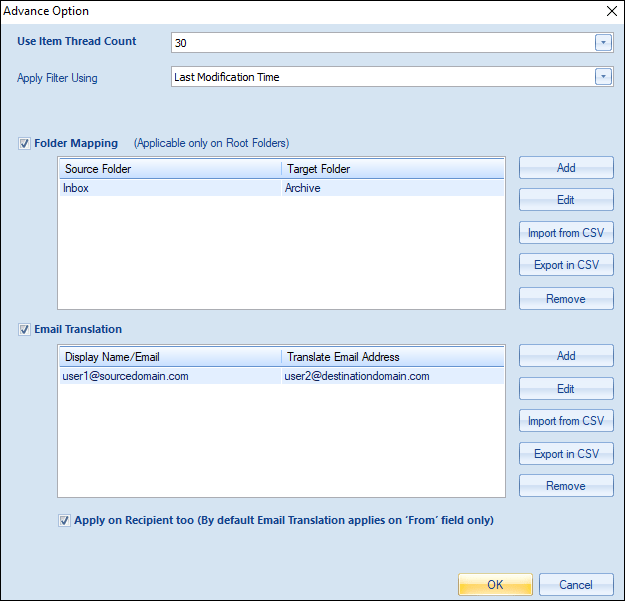
- From the Advance Option, you will be able to use some other options. You can set Item Thread Count, can also map folder using Folder Mapping option. An option for Email Translation is also given. In the end, click on the OK.
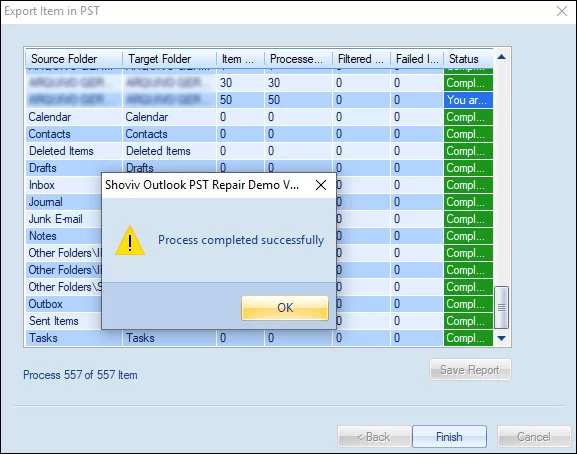
- The actual process will start now. After completing the process “Process completed successfully” message will pop up. You will also be able to see a complete report of the process and download it. Click on the Finish button. This is how you can easily repair Outlook data files.
Summary:
Outlook is a prominent email client, and corruption of Outlook database files is a common issue. We can easily find users searching for a way to repair Outlook data files. A manual method called Scanpst.exe is available to repair files, but it is not an effective utility.
This utility doesn’t provide a satisfactory result to professionals. The Shoviv Outlook PST Repair tool comes as an efficient and effortless option for professionals. It has numerous user-centric options; also has a very user-friendly GUI. A free demo version of the software is also available.
One can easily experience working before purchasing it. If you have to repair Outlook database files must download the free trial version of the software. Anytime you can upgrade to the licensed version after getting satisfied with the tool.
Frequently Asked Questions: Repair Outlook Data Files
Where is the SCANPST.EXE (Inbox Repair Tool) located in Windows 11, and why can’t I find it in Search?
In Windows 11, the native Windows Search indexer often skips hidden system program directories, making SCANPST.EXE difficult to locate through the Start Menu. Rather than searching for it, navigate directly to the folder using File Explorer based on your installed version of Outlook:
– Outlook 365 / 2021 / 2019 (64-bit): C:\Program Files\Microsoft Office\root\Office16\
– Outlook 365 / 2021 / 2019 (32-bit): C:\Program Files (x86)\Microsoft Office\root\Office16\
– Click-to-Run installations: C:\Program Files\Common Files\System\MSMAPI\1033\
Pro Tip: Press Win + R, type %ProgramFiles%\Microsoft Office\root\Office16, and press Enter to jump directly to the target directory without manual clicking.
What is the main difference between repairing a PST file and an OST file on Windows 11?
The key difference lies in whether the file contains local-only data or a cached mirror of a cloud server:
PST Files (Personal Storage): These store standalone local archives, POP3 accounts, and exported data. Since PST files exist only on your local drive, repairing them via SCANPST.EXE or third-party repair tools is critical to recovering corrupted items without permanent loss.
OST Files (Offline Storage): These are temporary offline copies of IMAP, Exchange, or Microsoft 365 mailboxes. You generally do not need to repair an OST file. Instead, simply close Outlook, rename or delete the corrupted .ost file in: C:\Users\<Username>\AppData\Local\Microsoft\Outlook, and open Outlook again. Windows 11 will automatically rebuild a fresh, healthy OST file directly from the server.
Why does SCANPST.EXE keep freezing or failing halfway through the repair process in Windows 11?
If SCANPST appears unresponsive (“Not Responding”) or throws an error on Windows 11, it usually happens for one of three reasons:
Severe Corruption Beyond File Structure: SCANPST only repairs minor directory header corruptions. If the internal database structure is heavily damaged, it enters a infinite loop or crashes.
File Size Limits: SCANPST struggles with PST files exceeding 20 GB – 50 GB.
Background Services File Locking: Windows 11 features like OneDrive Auto-Sync or Windows Defender Real-Time Protection may lock the .pst file while SCANPST attempts write operations.
Quick Fix: Pause OneDrive syncing and temporarily disable background indexing on your Outlook folder before running the repair tool. If the PST file exceeds 20 GB, a dedicated enterprise repair utility is required.
Will repairing my PST or OST file remove my custom Outlook rules, signatures, or search indexes in Windows 11?
Signatures & Rules: No. In Windows 11, signatures are stored in a separate directory (%AppData%\Microsoft\Signatures), and server-side rules remain stored on your email server. Repairing or recreating your data file will not erase them.
Search Indexing: Yes, temporarily. Once a data file is repaired or rebuilt, Windows 11’s rebuilt Search Service (SearchIndexer.exe) must re-index the file. You may notice missing search results for a few hours after the repair until Windows 11 finishes indexing your newly repaired file in the background.
What should I do if my PST file is stored inside a OneDrive folder in Windows 11?
Storing active PST files directly in OneDrive synchronized folders (C:\Users\<Username>\OneDrive\Documents\Outlook Files) is one of the leading causes of PST corruption in Windows 11. Concurrent read/write requests between Outlook and OneDrive sync engine create file locks that damage the PST structure.
Correct Procedure:
1. Close Microsoft Outlook completely.
2. Copy the .pst file out of the OneDrive directory and move it to a non-synced local folder (e.g., C:\Outlook_Data\).
3. Run SCANPST.EXE on the file in its new local location.
4. Re-link the repaired PST to Outlook via File > Account Settings > Account Settings > Data Files tab.