
Summary: Hosting static website on S3 is a cost-effective way to publish websites built with HTML, CSS, JavaScript, images, and other static files without managing a traditional web server. To host a website on AWS, create an S3 bucket, upload your website files, configure the index document, set the required permissions, and test the website endpoint. For production websites, Amazon CloudFront can provide HTTPS, content delivery, and secure access to a private S3 bucket through Origin Access Control (OAC). AWS may offer free usage or credits to eligible customers, but hosting costs depend on current Free Tier terms, storage, requests, data transfer, and additional services. Amazon S3 static website hosting is ideal for portfolios, landing pages, documentation sites, and other static projects that do not require server-side processing.
What Is Static Website Hosting on Amazon S3?
Hosting a static website on Amazon S3 means using Amazon Web Services (AWS) object storage to store and deliver website files such as HTML pages, CSS stylesheets, JavaScript files, images, icons, and downloadable documents. Unlike a dynamic website, which generates pages using server-side code or database queries, a static website generally sends files that have already been created. When someone opens your website, their browser downloads the required files and displays the page. This approach works well for business websites, product documentation, portfolios, landing pages, technical guides, and project websites that do not require server-side processing.
Amazon S3, short for Amazon Simple Storage Service, stores files in buckets rather than traditional server directories. You upload your website files to a bucket, configure its static website hosting settings, and use the website endpoint AWS provides to access your pages. You can also connect a domain name and put Amazon CloudFront in front of the bucket to improve delivery, support HTTPS, and add another layer of security. One important distinction is that S3 static website hosting does not run applications such as PHP, Python, or Node.js on the server. If your website needs login processing, a database, or dynamic server-side functionality, you will need additional AWS services or a different hosting solution.
Why Choose Amazon S3 for Website Hosting?
Amazon S3 is a useful option for website owners who want to publish static content without maintaining a conventional web server. You do not need to manage an operating system, install a web server, or apply server software updates for the storage service. AWS manages the underlying infrastructure, while you manage the website files and access configuration. This can make deployment simpler for developers who already use AWS or maintain websites through automated build and deployment processes.
Another advantage is that storage and requests can scale with demand without requiring you to manually upgrade a traditional hosting server. S3 is designed for high durability, although durability should not be confused with a guarantee that every website configuration will always be available. For global audiences, Amazon CloudFront can cache website assets closer to visitors, reducing latency and helping deliver content efficiently. However, S3 is not automatically free, and the final cost depends on storage, requests, data transfer, and any additional services you use. Understanding those details before launching your site is important, especially if you expect substantial traffic.
Benefits and Limitations of S3 Static Hosting
The biggest benefit of static website hosting on S3 is its relatively simple infrastructure. You upload files instead of configuring a full web server, and you can update the site by replacing or adding objects in your bucket. Static files can also be distributed through a content delivery network, and build tools can automate publishing whenever you update your source code. For a small company website or documentation portal, this can provide a practical balance between control, scalability, and maintenance.
There are limitations to consider. The S3 website endpoint does not provide HTTPS by itself, and its website-hosting configuration is separate from the normal private bucket access model. The website endpoint also does not directly support every feature available through an HTTPS-enabled CloudFront distribution. In addition, server-side rendering, application sessions, database queries, and traditional server-side form processing require other services. For many projects, these limitations are manageable, but the hosting design should match the application’s actual requirements rather than assuming S3 can replace every kind of web server.
What Do You Need Before Getting Started?
Before you begin hosting a static website on S3, prepare a few basic things. You need an AWS account with permission to create and configure Amazon S3 resources, a collection of website files, and a clear idea of whether you want a temporary testing URL or a public website with a custom domain. If you are learning web development, a simple HTML page is enough to get started. If you already have a website built with React, Vue, or another frontend framework, you will usually need to upload its generated production files rather than the original development source code.
It is also useful to understand the difference between a bucket’s name, its region, and its website endpoint. The bucket name must be globally unique within the applicable AWS partition, and the region determines where your objects are stored and which regional website endpoint you receive. If you plan to use a custom domain with HTTPS, you should also plan for CloudFront, a suitable TLS certificate, and DNS configuration. AWS recommends considering Amplify Hosting for a managed HTTPS deployment of static content stored in S3.
Finally, set up billing alerts or budgets before experimenting with cloud services. A small test website can be inexpensive, but a public resource that attracts unexpected traffic can generate charges.
How to Host a Website on AWS for Free
If you want to learn how to host a website on AWS for free, Amazon S3 is one option worth exploring. However, free hosting is not guaranteed indefinitely. AWS’s current Free Tier terms depend on account eligibility, service usage, and the plan you choose. AWS states that new customers can receive up to $200 in Free Tier credits, with a free plan available for six months after account creation; credits have their own expiration conditions. Check the official AWS Free Tier information before creating resources.
For a basic learning project, use a small HTML page and a few lightweight assets. Avoid adding services that you do not need, and remember that a domain name is generally a separate expense. The steps below explain the traditional S3 static website endpoint approach, which is suitable for understanding how S3 website hosting works. Because this approach requires public read access and serves the website over HTTP, it should not automatically be your choice for a production website. A private S3 bucket behind CloudFront is usually a better security design when you need HTTPS.
Step 1: Create an Amazon S3 Bucket
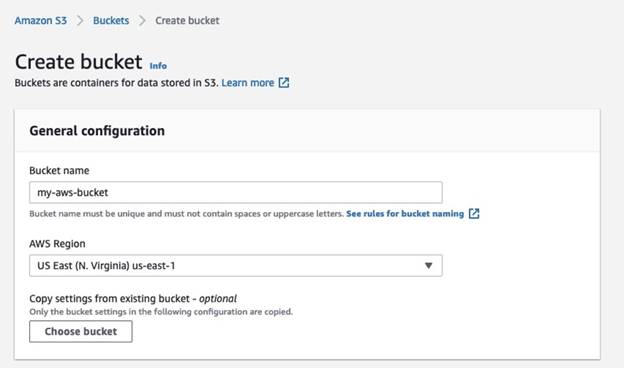
Start by signing in to the AWS Management Console and opening Amazon S3. Select Create bucket, enter a unique bucket name, and choose an AWS region. For example, you might use a name such as my-static-site-demo-2026-unique, provided no other customer has already taken it. For a traditional website endpoint, the bucket name can be a separate project name; if you want to use a custom domain directly with the S3 website endpoint, domain and bucket naming need to be planned together.
Choose a region based on your audience, data requirements, and expected service costs. Keep the default security settings while you decide which hosting architecture you intend to use. If you are following the traditional public website endpoint method described in the next steps, you will later need to configure public read access for the website objects. If you intend to use CloudFront with a private bucket, leave Block Public Access enabled and configure CloudFront origin access control instead. AWS explains both the traditional public method and the more secure CloudFront approach in its S3 website hosting documentation.
Once the bucket has been created, open it and check that its name and region are correct. Keep a note of the region because you will need the corresponding endpoint later. Creating a bucket alone does not publish your website, and visitors cannot see your pages until the files and the relevant hosting configuration are in place.
Step 2: Upload Your Website Files
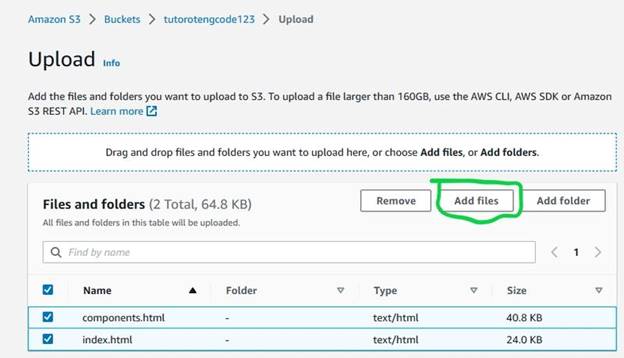
Next, prepare the files that make up your website. A basic project might contain index.html, style.css, script.js, and an images folder. Open your bucket in the S3 console, select Upload, add the required files, and complete the upload. If your website uses several folders, preserve their paths so that references to CSS, JavaScript, images, and other assets continue to work.
Your main page will typically be named index.html. Make sure the HTML references the correct filenames and paths, paying attention to uppercase and lowercase characters. For example, Images/logo.png and images/logo.png can be treated as different object keys. If you built the website with a frontend framework, run its production build command and upload the resulting output directory, which may be named dist, build, or something else depending on the framework and project configuration.
After uploading, inspect the object list and confirm that the main HTML file is at the expected location. If you accidentally upload the entire project folder as a top-level directory, S3 may not find index.html at the root of the bucket. You can still host files stored under a prefix, but your index-document configuration and file paths must match the layout. A careful check at this stage can prevent broken stylesheets, missing images, and access errors later.
Step 3: Enable Static Website Hosting
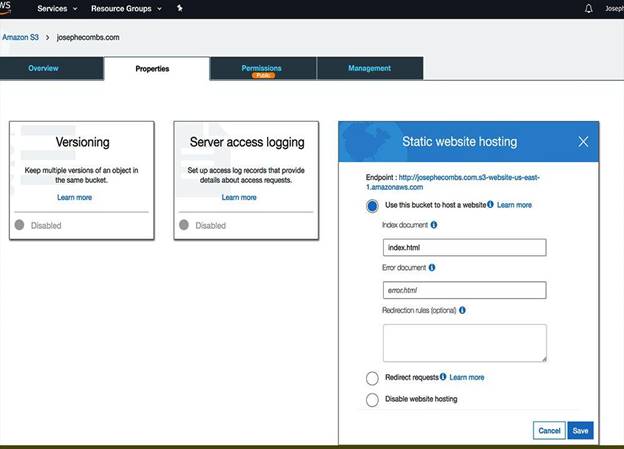
After uploading the files, open the bucket and select Properties. Find the Static website hosting section, choose Edit, select the option to use the bucket to host a website, and enable the feature. Enter index.html in the index document field if that is the name of your homepage. You can also specify an error document such as 404.html, provided that you have uploaded a matching file.
The index document setting tells S3 which page to return when a visitor requests the website’s root path. The filename is case-sensitive, so entering Index.html when the actual object is index.html can cause a problem. If your site includes a custom error page, check that the configured filename matches the uploaded object exactly. Save the changes and return to the Static website hosting section to find the website endpoint.
AWS provides detailed instructions for this configuration in its official static website setup guide.
Keep in mind that enabling static website hosting does not, by itself, make private objects accessible to visitors. You must also configure access appropriately for the architecture you selected.
Step 4: Configure Bucket Permissions
This is the step that requires the most care because the two common hosting approaches use different access models. For the traditional S3 website endpoint, visitors must be able to read the website objects anonymously. That normally requires changing the applicable Block Public Access settings and adding a bucket policy that grants s3: GetObject access to the intended website objects. AWS warns that disabling public access rotections can expose bucket contents to anyone on the internet.
A typical public-read policy for a dedicated website bucket follows this pattern. Replace the example bucket name with your actual bucket name and do not use this policy on a bucket that contains private business documents or other sensitive data.
{

  "Version": "2012-10-17",

  "Statement": [

    {

      "Sid": "PublicReadWebsiteObjects",

      "Effect": "Allow",

      "Principal": "*",

      "Action": "s3:GetObject",

      "Resource": "arn:aws:s3:::YOUR-BUCKET-NAME/*"

    }

  ]

}
This policy grants read access to objects in the specified bucket; it does not grant visitors permission to upload, delete, or modify files. Nevertheless, anyone who can access the website may be able to download any object covered by the policy, including files you did not intend to publish. Keep the bucket dedicated to public website content and review the object list before applying the policy. You may also need authorization to change the bucket’s public access settings, and account-level restrictions or organization policies can prevent public access.
For a production site, consider a different approach: keep the S3 bucket private and use Amazon CloudFront with Origin Access Control (OAC). In that setup, CloudFront can retrieve website files from S3 while visitors connect to the CloudFront distribution over HTTPS. You generally do not need to enable S3’s static website hosting feature when using the private REST API endpoint as the CloudFront origin; instead, configure the default root object and any required routing or error behavior in CloudFront.
Step 5: Access Your Website
Once the files, hosting configuration, and permissions are ready, return to the bucket’s Properties page and locate the Static website hosting section. Open the website endpoint shown there. The URL uses an AWS regional website endpoint, and the exact hostname varies by region. You can also access individual files by appending their object paths to the endpoint.
Test your website as a visitor would. Confirm that the homepage loads, images appear, links work, and the CSS and JavaScript files are retrieved successfully. Try opening a page that does not exist to check your error-page configuration. If you receive an AccessDenied response, review the bucket policy, Block Public Access settings, and any account-level restrictions. If the page opens but looks unstyled, check the browser’s developer tools for missing assets or incorrect file paths.
One important limitation is that the standard S3 website endpoint supports HTTP, not HTTPS. It is suitable for learning and testing, but you should not treat it as a secure public-facing website endpoint for a production site that requires encrypted connections. For HTTPS and a custom domain, use CloudFront or consider AWS Amplify Hosting.
How to Connect a Custom Domain to Your S3 Website
A custom domain makes your website easier to remember and gives it a more professional address. For example, instead of sharing a long AWS endpoint, you could use www.example.com. To achieve this, you need a registered domain and DNS records that direct visitors to the correct hosting endpoint. If you are using the traditional S3 website endpoint, AWS documents a method involving a bucket named to match the relevant domain and a DNS record pointing to the website endpoint. Root-domain and subdomain configuration can require different DNS arrangements.
For a website that needs HTTPS, a common design is to point the domain to CloudFront rather than directly to the S3 website endpoint. You can request or import a suitable TLS certificate through AWS Certificate Manager, configure the certificate on CloudFront, and update DNS so that the domain resolves to the distribution. CloudFront can then serve cached website assets to visitors while S3 stores the original files. If you want to keep the bucket private, use the S3 REST endpoint as the origin and configure OAC, rather than exposing the bucket publicly.
DNS changes can take time to become visible across resolvers, so check the record type, target, and certificate status if the domain does not work immediately. Also decide whether the preferred address will use www or the root domain, and configure redirects if you want both addresses to reach the same site. A custom domain is optional for learning how S3 hosting works, but it is useful when you plan to share the site publicly.
How to Enable HTTPS with Amazon CloudFront
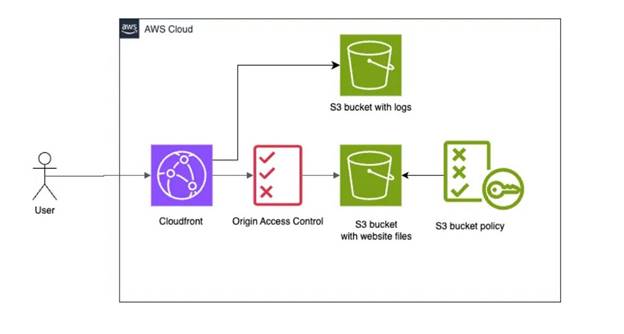
HTTPS protects data while it travels between the visitor’s browser and the service that delivers the website. The S3 static website endpoint does not support HTTPS directly, so adding an https:// prefix to its URL will not solve the problem. AWS recommends using CloudFront or Amplify Hosting when secure HTTPS delivery is required.
For a secure S3 and CloudFront architecture, create a CloudFront distribution with your S3 bucket as the origin. Prefer the bucket’s regular S3 origin endpoint and configure Origin Access Control so that CloudFront can read the necessary objects without making the bucket publicly accessible. Set the default root object to index.html, configure HTTPS viewer access, and attach an appropriate certificate if you use a custom domain. Then update the distribution’s access policy and test the resulting CloudFront URL before changing your public DNS records.
This approach has several advantages: visitors receive HTTPS connections, CloudFront can cache content at edge locations, and the origin bucket can remain private. You may need to configure custom error responses or path handling if your website is a single-page application whose routes are handled by client-side JavaScript. Remember that CloudFront is a separate service with its own usage and pricing considerations. A simple website can still be inexpensive, but it is important to understand the total architecture rather than treating HTTPS as an automatic feature of S3.
Amazon S3 Static Website Hosting Costs
One of the main reasons developers consider S3 is its usage-based pricing. Instead of paying for a traditional web server that may sit idle, you pay for the resources your website consumes. Depending on your setup, these can include storage, requests, data transfer, and additional services such as CloudFront or Route 53. AWS does not require an upfront S3 setup fee, but that does not mean every website can run free indefinitely.
If you are researching how to host a website on AWS for free, check the current Free Tier eligibility and available credits before deployment. AWS’s current terms for new customers include up to $200 in credits and a six-month free plan option, subject to the applicable conditions. Do not assume older tutorials describing a universal 12-month free offer still apply to new accounts.
| Cost component | What can generate charges? |
|---|---|
| Amazon S3 storage | Website files stored in your bucket |
| S3 requests | Requests to upload, retrieve, or manage objects |
| Data transfer | Data delivered to visitors, subject to applicable pricing and allowances |
| Amazon CloudFront | Distribution requests, data transfer, and other applicable usage |
| Domain registration | Registration and renewal of a custom domain |
| Amazon Route 53 | Hosted zones and DNS queries, where applicable |
To control expenses, keep your website files reasonably small, compress images, enable suitable caching, and remove unused resources. Set up AWS Budgets or billing alerts, and check your actual usage regularly. An alert can help you notice unexpected costs, although an alert is not necessarily a hard spending limit. You should also review the official Amazon S3 pricing page and AWS Free Tier page before making a budget.
Common Problems and Troubleshooting Tips
Even a simple static website can run into problems during its first deployment. Most issues arise from incorrect object paths, permissions, index-document settings, or DNS configuration. The good news is that you can usually identify the cause by checking the browser’s response and the corresponding settings in the AWS console. Rather than changing several settings at once, test one possible cause at a time so you can identify the actual problem.
| Problem | Possible cause | Recommended fix |
|---|---|---|
| 403 Access Denied | Missing permission or blocked public access | Review the bucket policy and access settings, or check CloudFront OAC permissions |
| 404 Not Found | Missing file or incorrect object path | Confirm the filename, folder structure, and capitalization |
| Homepage does not load | Incorrect index-document configuration | Set the index document to the exact uploaded filename |
| Website loads without styling | Incorrect CSS path or missing stylesheet | Check the HTML references and browser developer tools |
| HTTPS does not work | Using the S3 website endpoint directly | Configure CloudFront or use Amplify Hosting |
| Changes are not visible | Cached content in a browser or CDN | Check caching behavior and invalidate affected CloudFront objects if necessary |
| Custom domain fails | Incorrect DNS record or certificate configuration | Verify DNS targets, domain settings, and certificate status |
AWS documents the index-document, permission, and endpoint configuration requirements in its static website hosting guide.
If you use CloudFront, also check its origin configuration and distribution status. A successful upload does not automatically mean every file is accessible through the public website.
For single-page applications, remember that a route such as /about might not correspond to an actual S3 object. You may need to configure the frontend’s routing strategy or CloudFront error handling to return the application entry point for supported routes. Do this carefully: returning the homepage for every missing asset can hide genuine errors and make debugging harder.
Security Best Practices for S3 Website Hosting
Security deserves attention even when a website contains only public information. An S3 bucket can hold many objects besides the files you intended to publish, and an overly broad public-read policy can expose those objects. Before launching the site, review every object in the bucket and remove credentials, configuration files, source archives, private documents, and other material that should not be publicly downloadable. Never place access keys or other secrets in JavaScript files, HTML pages, or frontend environment variables because visitors can inspect client-side code.
For production websites, the preferred approach is usually to keep the S3 bucket private and allow access through CloudFront using Origin Access Control. AWS identifies OAC as the recommended approach over the older Origin Access Identity method for supported private S3 origin configurations.
This design helps ensure that users access the website through the intended distribution rather than bypassing it and requesting files directly from a public bucket.
You should also use least-privilege permissions for the AWS users and roles that manage the site. A deployment role generally needs permission to upload or update website objects, but it does not automatically need permission to change account-wide security settings. Enable appropriate logging and monitoring for your requirements, protect the account with multifactor authentication, and review billing activity for unexpected usage. If you are publishing a business website, maintain a backup of the source files and a repeatable deployment process so that you can recover from accidental changes.
Amazon S3 vs. Other Static Website Hosting Services
Amazon S3 is not the only way to publish a static website. Depending on your experience and requirements, a managed hosting service may provide a simpler deployment process. For example, AWS Amplify Hosting is designed to provide managed static website deployment and HTTPS, while other platforms may offer build pipelines, preview deployments, and custom-domain configuration as part of their hosting workflow. The best choice depends on whether you want low-level control over AWS resources or a more integrated publishing experience.
| Feature | Amazon S3 website endpoint | S3 with CloudFront | AWS Amplify Hosting |
|---|---|---|---|
| Main purpose | Basic static file hosting | Static hosting with CDN delivery | Managed frontend hosting |
| HTTPS | Not supported directly | Supported through CloudFront | Supported for hosted deployments |
| Private S3 origin | Not the standard website-endpoint model | Supported using OAC with an S3 REST origin | Managed deployment experience |
| Custom domain | Requires DNS configuration | Supported with DNS and a suitable certificate | Supported through hosting configuration |
| CDN | Not provided by the website endpoint itself | CloudFront distribution | Managed CDN integration |
| Setup complexity | Low to moderate | Moderate | Often simpler for frontend deployment |
| Billing | S3 usage and applicable transfer charges | S3 and CloudFront usage | Depends on applicable Amplify pricing and usage |
AWS specifically recommends considering Amplify Hosting for static website content stored in S3 when you want a managed deployment and globally available HTTPS delivery.
S3 with CloudFront is useful when you want to control the distribution and origin configuration yourself. The basic website endpoint can be appropriate for learning the service, but its HTTP-only behavior makes it less suitable for a production website that requires secure connections.
When Should You Use Amazon S3 for Website Hosting?
Amazon S3 works particularly well for sites that primarily deliver files rather than generate content on the server. Think about a portfolio that displays completed projects, a product documentation site that contains installation instructions, or a landing page that introduces a service. These websites often consist of HTML, CSS, JavaScript, and media files that can be stored as objects and delivered to visitors. With CloudFront, the same content can be cached at edge locations to improve delivery for geographically distributed audiences.
S3 can also fit into a larger application architecture. For example, a frontend might be hosted through S3 and CloudFront while a separate API handles form submissions, authentication, or database operations. This arrangement separates static content delivery from application processing and lets each part use a suitable service. It also gives development teams flexibility to update the frontend independently of the backend.
However, S3 alone is not a replacement for a traditional server when the application depends on server-side execution. Websites that require WordPress and PHP, server-rendered pages, database-backed sessions, or server-side form processing need additional hosting or application services. If you want a guided deployment with less manual configuration, Amplify Hosting may be a better starting point. Choose the architecture based on the features your website actually needs, not just on the lowest possible storage price.
Amazon S3 Backup and Migration Options for Cloud Admins:
Conclusion
Hosting static website on S3 is a practical way to learn cloud hosting and publish websites built with HTML, CSS, JavaScript, and other static assets. The basic process involves creating an S3 bucket, uploading the files, enabling website hosting, configuring the required access permissions, and testing the website endpoint. With a little attention to filenames, paths, and permissions, even beginners can complete a simple deployment without maintaining a conventional web server.
If your goal is to learn how to host a website on AWS for free, begin with a small test project and review the current AWS Free Tier terms before creating resources. Free usage depends on eligibility, available credits, and service consumption, so monitor your costs from the start. For a public production website, consider using a private S3 bucket with CloudFront and Origin Access Control, or choose AWS Amplify Hosting for a more managed experience. The right setup will help you balance cost, security, performance, and ease of maintenance.
Frequently Asked Questions
1. Can I host a static website on Amazon S3 for free?
You may be able to host a small website within applicable AWS Free Tier allowances or credits. However, eligibility and offers depend on your account and the current terms. Storage, requests, data transfer, domain registration, and additional services can generate charges, so review the current AWS Free Tier details before deployment.
2. Does Amazon S3 support HTML, CSS, and JavaScript?
Yes. Amazon S3 can store and deliver HTML documents, CSS stylesheets, JavaScript files, images, fonts, and other static assets. The browser executes client-side JavaScript after downloading it, but S3 does not run server-side application code such as PHP or Node.js.
3. Can I use a custom domain with an S3-hosted website?
Yes. You can configure DNS for a custom domain to direct visitors to your website. For HTTPS, a common solution is to connect the domain to a CloudFront distribution with an appropriate TLS certificate. The exact DNS setup depends on whether you use a root domain, a subdomain, or both.
4. Why does my S3 website show an Access Denied error?
An Access Denied response can result from a missing bucket policy, restrictive Block Public Access settings, account-level security controls, or incorrect CloudFront origin permissions. For a traditional public website endpoint, the website objects need public read access. For a private S3 bucket behind CloudFront, verify the distribution’s OAC configuration and bucket policy instead of making the bucket public.
5. Is Amazon S3 better than traditional web hosting?
It depends on the website. S3 is a strong option for static files because it avoids managing a conventional web server and can work with CloudFront for HTTPS and global delivery. Traditional hosting or additional AWS services may be more suitable for websites that require server-side processing, databases, or applications such as WordPress. Compare the complete cost and technical requirements before deciding.